
Multi-Session Support
(IP per POS)
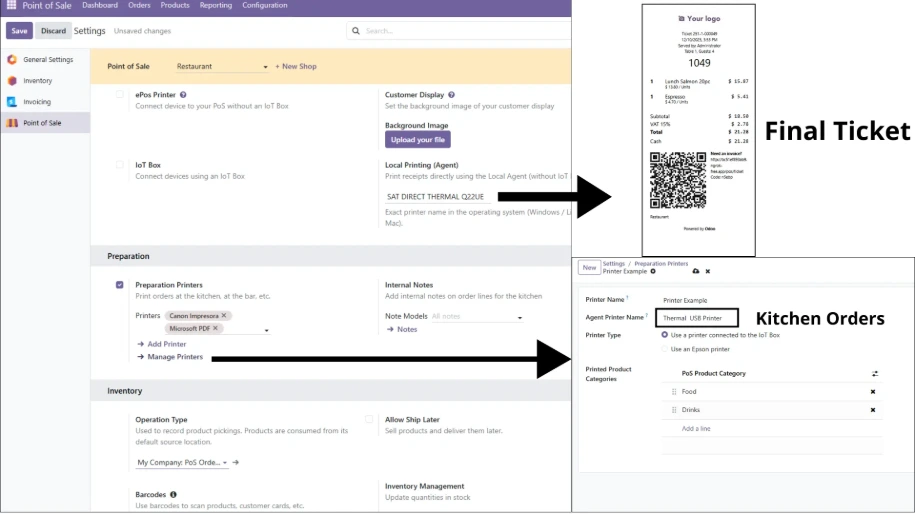
Now each Point of Sale (POS) can have its own independent Print Agent configuration.
- ✅ No Conflicts: Define a unique Agent URL/IP for each POS.
- ✅ Flexible: Perfect for stores with multiple checkout counters using different computers.
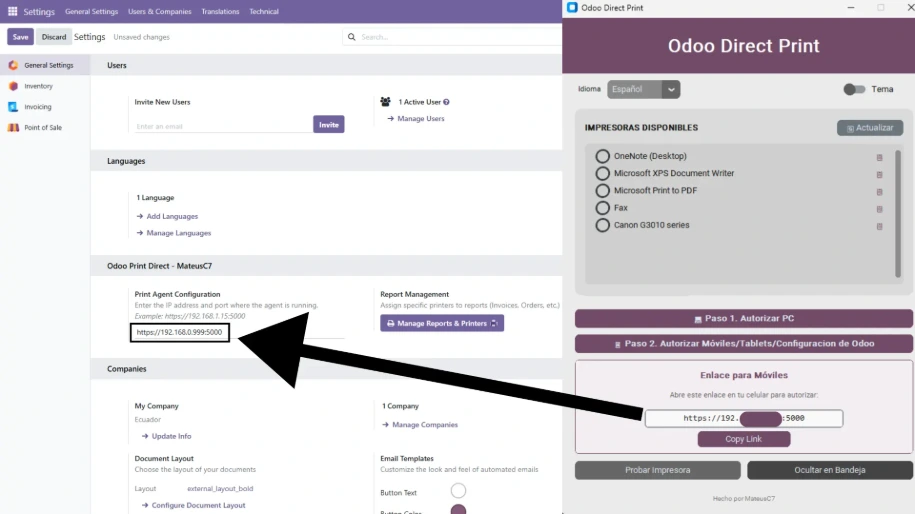
- ✅ Easy Setup: Just enter the specific IP in the "Connected Devices" section of your POS settings.


Dual Printing Modes: Image vs Text
We now support two types of printing for thermal printers, giving you full control over speed and quality.
- 🅰️ Text Mode (Raw/ESC-POS):
Uses generic text drivers. Lightning fast and compatible with almost any thermal printer (even old ones). - 🖼️ Image Mode (HTML Canvas):
Prints the receipt as a high-quality image. Perfect for logos and complex layouts.
ODOO DIRECT PRINT
Print any Odoo document directly to your printer. No IoT Box. No subscriptions. No hassle.
💰
One-Time Payment
No monthly fees. Own it forever.
v18-19
Odoo versions supported
100%
Compatible printers
Configuration Scenarios
🏷️ How to Print ZPL Labels in Stock
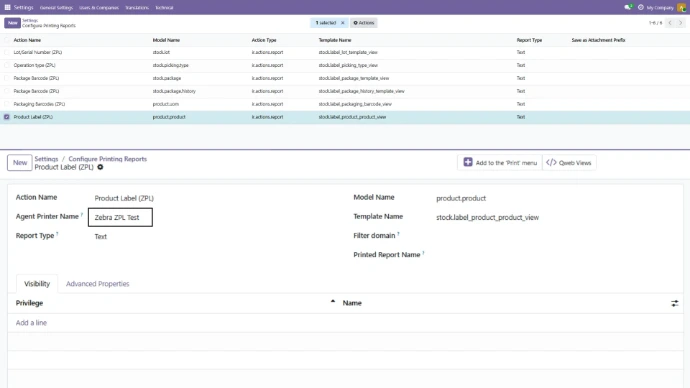
Step 1: Configure the Report
Go to the "Report Management" menu and search for "zpl". Select the label report you want to use and assign your ZPL printer (e.g., Zebra, TSC) from the dropdown list.

Step 2: Print from Stock
Once configured, go to the Inventory/Stock module. Select products, click "Print Labels", and choose the layout (with price or without price). It will print directly to your label printer.
📄 How to Print PDF Invoices
Configuration
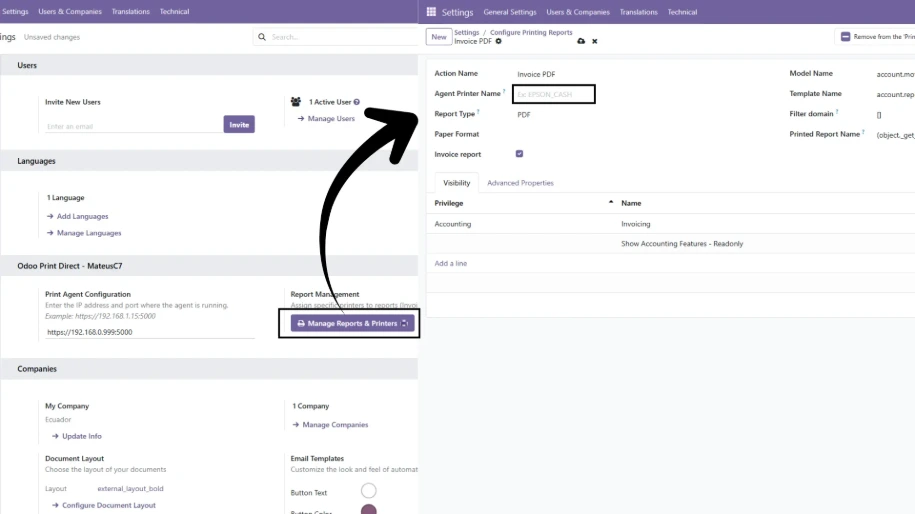
To enable direct PDF printing for invoices:
- Go to Report Management.
- Search for the report named "Invoice PDF".
- Select your standard A4/Letter printer.
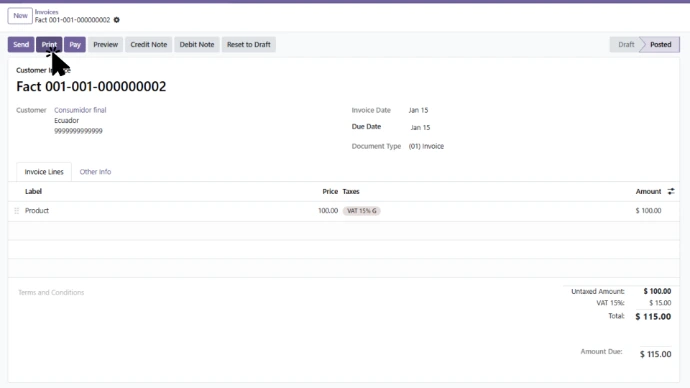
Now, every time you click "Print Invoice", it will be sent directly to the printer.
Configuration Scenarios
🏷️ How to Print ZPL Labels in Stock
Step 1: Configure the Report
Go to the "Report Management" menu and search for "zpl". Select the label report you want to use and assign your ZPL printer (e.g., Zebra, TSC) from the dropdown list.
Step 2: Print from Stock
Once configured, go to the Inventory/Stock module. Select products, click "Print Labels", and choose the layout (with price or without price). It will print directly to your label printer.
📄 How to Print PDF Invoices
Configuration
To enable direct PDF printing for invoices:
- Go to Report Management.
- Search for the report named "Invoice PDF".
- Select your standard A4/Letter printer.
Now, every time you click "Print Invoice", it will be sent directly to the printer.
